I’ve been using Google for about nine years. I made the switch from AltaVista because it was faster to load and had better results. Ever since then, I’ve been constantly amazed at the number of new services being released and acquisitions being made by Google.
People have often suggested that I should work for Google, given my obvious enthusiasm and keen interest in everything they do. I’ve always dismissed that suggestion, partially because I’ve never seen a position advertised which I felt would suit my skills and experience, but also because of all the stories I’ve read about how difficult their interview process can be!
So when I heard Google was looking to hire Webmasters in the UK, I was pleasantly surprised to see that the job specification described my ideal job and I decided to apply. What happened next came as quite a shock...
I’m extremely excited to confirm that I will be taking on a role within Google’s Webmaster Team from January 2010, working from the London office. Although I don’t know exactly what I’ll be working on yet, I’ll be part of the team that looks after Google’s many websites, which doesn’t include products such as Gmail, Google Calendar or Google Reader, but might mean I get to work on Google’s home page from time to time!
Unfortunately, this obviously means I am no longer able to be co-editor of Google Blogoscoped. But that doesn’t mean I’m leaving for good and closing the door behind me. After five years of contributing to the forum, I don’t intend on stopping now. I’ve always been impressed by the discussions and observations made by the Blogoscoped community, so I hope it will continue to be a part of my daily routine for many years to come. I’ll probably avoid commenting on any speculation about what Google might be planning next though... ;-)
I’d like to take this opportunity to sincerely thank Philipp for giving me the chance to write for Google Blogoscoped, which has clearly played a large part in developing my interest in everything Google-related and has given me some great exposure and opportunities. Being able to attend Google Press Day 2007 in Paris was a particular highlight for me!
I’d also like the thank everyone else who reads the blog or contributes to the forum. It’s people like you who help to keep Google honest. It’s really important that you continue to question what Google is doing and raise any concerns that you may have about how Google operates as a company. After all, I want to work for an awesome company rather than an evil one!
[Enormous thanks also to Google Blogoscoped members, and Googlers, John Mueller and Reto Meier!]
Yesterday, Facebook suggested two people to me through its “Suggestions” feature which usually includes friends of friends, co-workers and people I used to go to school with. The odd thing about these two suggestions was that although I knew both of them – I had made contact with them years ago because they are my third or fourth cousins – we had no friends in common, we had never worked at the same place, we even lived in different parts of the world. So how did Facebook know that we knew each other?
I’m sure all you Facebook users are already aware that you can enter your Gmail (or other webmail) username and password to import a list of your contacts into Facebook to see if any of them are already registered based on their email address. This is something I have never done as I don’t like to enter my Google Account password on third-party websites. Even if I had done this, I knew for a fact that I had never used my Gmail account to email these two people.
But what if Facebook had used my friends’ imported contact lists to suggest their profile to me even though they didn’t add me as a friend? I am now pretty sure that’s what happened here. Here’s how I proved it:
My friend added my email address to his Contacts in Gmail.
My friend signed in to his Facebook account and imported his Contacts from his Gmail account using the “Find People You Email” feature.
My friend chose to skip the friend suggestion it was making based on my Gmail address.
I signed in to my Facebook account and saw that my friend’s Facebook account was being suggested to me.
In summary, it seems that even if you choose to skip the contacts you have imported, Facebook will still store your relationship with those contacts. Not only will it continue to include them in your suggestions, but it will also alert them to the fact that you previously imported their email address and that you are registered on Facebook. Facebook clearly states that it will not store your password, but it doesn’t tell you that it will store all your contacts even if you chose to skip them.
Admittedly, your account will only be suggested to others if your privacy settings allow your profile to be returned in search results, so anyone could search for your profile themselves, but is it right for Facebook to suggest you to the people that you have chosen to skip? Also, does this mean it’s possible to force yourself into someone else’s suggestions list by simply adding their email address to your contacts?
Update: Canna points out in the forum that you can now remove this information from Facebook using the Remove Contacts Imported using the Friend Finder page, usually accessible via: Friends > Find Friends > Learn More. (Perhaps this is a new page as I don’t remember seeing that link before...) [Thanks Canna!]
Evidence that Google was working on a service like this originally surfaced in August 2008 when references to Google Translation Center appeared in Google’s robots.txt file. At the time, the service was only available to Trusted Testers and most of the pages and screenshots were quickly taken offline. Since those screenshots were produced, it’s clear that a lot of changes have been made to the tool.
The Translation Process
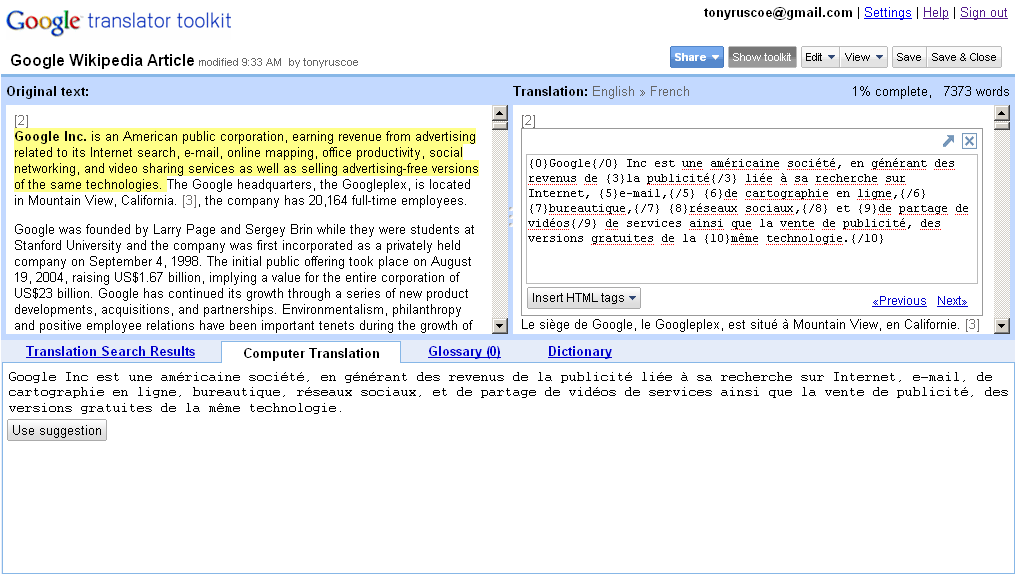
The Google Translator Toolkit Workbench, showing side-by-side editing of Wikipedia’s Google article.
For those not familiar with standard translation processes, a professional translator is likely to use a Computer-aided translation (CAT) tool to help identify and extract snippets of text for translation from various file types.
Google Translator Toolkit currently only allows users to upload HTML, Microsoft Word, OpenDocument Text, Rich Text and Plain Text documents up to 1MB for translation. Alternatively, it’s possible to enter the URL of a file on the web, select a Wikipedia article or a Knol for translation.
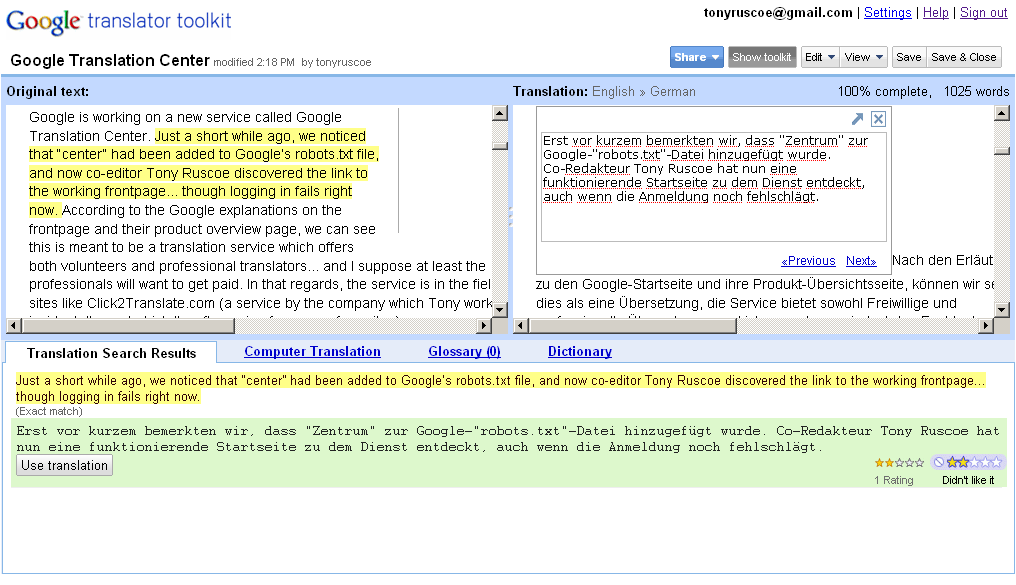
Once uploaded or selected, files can be translated using the Workbench interface which shows the source text and the target language translations either side-by-side or above and below each other.
Previously translated segments from the translation memory are suggested and can be rated by yourself and others.
One good reason to share translations with others is so that they can be reviewed for consistency and style. Google allows users to rate translated segments, presumably for style and accuracy. Comments can also be added to the target document, which is especially useful when collaborating with other users.
Translation Memories
In addition to the global translation memory, users can also create and share their own TMs.
Many CAT tools allow the translator to store their human translations in a database called a translation memory. The memory can then be used to help with future translation projects by checking to see whether a certain word, phrase, sentence or segment has been translated before. Even if it’s not exactly the same phrase, the translation memory can be used to suggest what’s called a fuzzy match, often indicated by a percentage to reflect how similar the text is.
When translating Wikipedia articles and Knols, the translations are stored in a global, shared translation memory that’s available to everyone by default. That means previously translated phrases from these articles are stored and available for use by other translators using the service, so if they ever find themselves translating the same piece of text, Google will automatically populate the interface with the previous translations to help save time.
When you upload a document into Google Translator Toolkit, we automatically ‘pretranslate’ your document as follows:
We divide your document into segments, usually sentences, headers, or bullets.
We search all available translation databases for previous human translations of each segment.
If any previous human translations of the segment exist, we pick the highest-ranked search result and ‘pretranslate’ the segment with that translation.
If no previous human translation of the segment exists, we use machine translation to produce an ‘automatic translation’ for the segment, without intervention from human translators.
We realize for some translators, pre-filling with machine translation may actually slow, not speed up, the translation process. In such cases, you can change your settings to pre-fill the segment with the source text, so you can type over the source text instead of making corrections to automatic translation.
Uploaded documents can benefit from using this global TM too, but if users don’t want to share their translations with everyone, they can create their own translation memories and control exactly which users can make additions and rate translations.
Translators already using CAT tools may have translation memories stored in the Translation Memory eXchange (.tmx) open standard XML format. Google allows translations contained in those TMs to be uploaded and added to existing Google Translator Toolkit TMs, providing they’re no larger than 50MB and confirm to TMX 1.0 or higher.
TMs other than the global TM can also be searched for previously translated segments which can then be rated without opening a translation document.
Glossaries
Glossaries are collections of words and phrases with definitions and notes associate with them. They are often used in the translation process to help choose which phrase is most appropriate and to maintain consistency between translations of technical or specialty subjects. Google Translator Toolkit requires CSV format glossaries to be uploaded (it’s not possible to create one from scratch) which will then be automatically searched for terminology in the segments that are currently being translated.
Learn More
For a really quick overview of some of these features in action, you can watch this YouTube video:
How could this be useful to Google?
A machine translation of the Google China Blog explains, “Google’s mission is to organize the world’s information and make it universally accessible and useful. Translation of information, in our view is the key to access to information.”
Google has been working on a statistical machine translation system for a few years now, which it started to use for Google Translate instead of Systran in October 2007. Since then it’s been slowly integrating translation into many of its services, including Google Toolbar, Google Talk, Google Reader, Gmail, and YouTube. There’s even an AJAX Language API which anyone can use to build upon.
In my opinion, this latest tool has clearly been designed to help improve Google’s translation offerings. One thing on which statistical machine translation relies is aligned translations. In very simple terms, to help train a statistical machine translation system, text in one language is fed into the system alongside the same text in another language. Will enough text, the system can start to learn how certain phrases should be translated. Without aligned translations, there’s no easy way to know exactly which sentence in the source document relates to the translated version. That’s where translation memories are very useful; they contain aligned translations.
There are literally thousands of Wikipedia articles being translated all the time, but the translations aren’t usually maintained in a translation memory. Through using Google Translator Toolkit, translators could benefit from seeing previously translated text from the global translation memory and, in return, Google could clearly benefit from translators using its interface to translate any content that’s then stored as aligned translations in their global TM, which it can ultimately use to enhance its statistical machine translation system and improve the translations that are provided to end-users of any service using Google Translate.
And as the global TM grows, it might even be possible for end-users to get near-to-human-quality for translations of their documents, websites, blog posts, emails and tweets instantly.
I’ve not got much information on this but it looks like some kind of drawing capabilities could be coming to Google Docs soon.
Using the following URLs, I was able to view different versions of a Google Docs drawing by adjusting the rev parameter to see various revisions, and the w and h parameters to adjust the width and height of the image on the fly (I’m not entirely sure what the ac parameter is for yet – perhaps “auto-crop” as it seems to remove the white-space from around the drawing):
Whether this image was created from scratch or picked and re-colored from a list of different shapes, I don’t know, but presumably this new feature is still being tested and we may not see it for a while, if at all.
During my research for my last post about Google Web Drive, various search engine results kept returning a document that had been deleted from the online document publishing website, Scribd. The site displays the following message explaining its removal:
The document “GDrive on Cosmo Getting Started Guide” has been removed from Scribd
This content was removed at the request of M. Homsi/Google
For more information, please send questions to support@scribd.com. Note that we cannot provide you with a copy of the document, as it has been permanently deleted.
(Incidentally, the same person requested this document about “Platypus” to be removed even though it seems to have just been a cached copy of this page, according to cached descriptions.)
GDrive on Cosmo Getting Started Guide was added to Scribd around 2 months ago by a user called “Alexander” using the username “m_w_f” who has also uploaded a number of other Google documents. However, while the other documents were meant for the public, this one clearly wasn’t.
Most of the search engines had already indexed the ’removed’ version of the page, otherwise a cached copy of all the text from the document would have probably made a very interesting read! And although I was unable to find a cached version of the complete document, I was able to piece together most of the content using the snippets shown in Yahoo!’s search results. Some of the most interesting parts follow, with formatting added for clarity and particularly intriguing parts emphasized in bold. (Apart from that, all quotations have come straight from the document.)
The document describes installing and upgrading “to GDrive on Cosmo” for both “Existing Platypus PC Users” and “Existing Platypus Mac Users”, hinting that the client is available for both PC and Mac. The detailed installation instructions explain how to backup files locally and then uninstall “the current version of Platypus” -- making reference to names such as “Platypus or Drivetastic or Google Web Drive” for the Mac users. It then says to “Download the latest GDrive client build” from the internal address http://go/getgdrive, install it and double click the “Google Web Drive” desktop icon (for PC users) to log in, perform an initial sync and “Start using GDrive by dragging files in or creating new files.”
Just as a reminder, Platypus was the name of the internal GDrive client that was leaked in 2006 which was available internally at Google for Windows and Linux. Whether this new version is an upgrade to that client or a more recent one is unclear though.
Amongst the FAQ are questions about local disk space and external access using a Gmail account:
What if I’m out of space on my local hard disk? Moving off of g: will free up space on your c: so this should work, but you can also try copying to filer instead and then moving it back to g: after you install the new build
Will the new GDrive client work if I’m not on the corp network? Not yet, but soon. We really want to offer this for google.com users and GMail users, but we still have a bit more work to do to set this up.
From the installation instructions we can work out that there’s a client for PC and Mac, but how do you view your files online? The document explains:
Viewing your files on the web in Google Docs You can view all your files online in a special version of Google Docs by visiting: w.svc-1.google.com OR http://w.svc-1.google.com/a/google.com for dasher login (e.g. your @google.com address)
Both of those URLs resolve but I was unable to login to the ’special version’ of Google Docs using either my Gmail or Google Apps domains. (Note: “dasher” is an internal name for Google Apps and can often be found referenced in their code.)
So, we now know that Googlers can access Google Web Drive online through a new version of Google Docs, but what other services are integrated?
PicasaWeb Integration You can see the photos you drop into the “Photos” magic folder in PicasaWeb by going to http://lighthouse-cosmo-canary.corp.google.com
This should come as no surprise to Google-watchers, given the current Google Docs already has references to photo albums hidden away, as the Google Operating System blog reported last year.
Why hasn’t Google Web Drive been released yet? There are likely to be lots of reasons, but here are some of the known issues:
Performance: Our prod setup does not currently have production QoS Latency, our frontends are in bf and backends in yq GFE in hot
Public folder: The public folder functionality is not yet implemented in the Doclist.
10GB quota limit: Cosmo hasn’t integrated with Amethyst yet, so every user has a quota of 10GB, if you have had more space on GDrive in the past it will be available to you shortly.
Google Docs Integration: Some folders from your Google Docs account may show up, please ignore these for now. We’re in the process of migrating all Google Doc accounts to cosmo so you may see some [...]
We’ve heard all about GDrive before but what’s Cosmo? And what’s Amethyst? Sadly, I was unable to retrieve any more of the text to finish that last sentence, but everything seems to suggest Cosmo is some kind of update to Google Docs which integrates with this new version of GDrive, perhaps a shared storage solution or user interface for all your online files.
We need to remember that this document has been taken completely out of context, so we don’t really know how old it was when it was uploaded 2 months ago, whether this new version is still being actively worked on, or whether it’s ever going to be released the public, but Google certainly keeps us guessing about GDrive...
When asked to make a wish list for Google in 2009, many of you said you wanted the legendary “GDrive” product to be released. Being the most eagerly anticipated Google product ever, with rumors literally going back years, could new evidence suggest that we may finally get to see it launched this year?
Not sure if this was left in by accident, but could you elaborate on exactly what the “Google Web Drive” option is? This appears when I right-click a folder and select “Move to Collection...” I’m hoping this is the beta of Google cloud storage solution. I’d love to beta test!
In the MacRumors forums, a user called “majorp” posted this screenshot:
I don’t own a Mac but stumbled across the above references after trying to access the old www10.google.com address, which used to redirect to the login page for the “www10” service which had previously been identified as GDrive in Google Apps. The address now returns a 404 error but its DNS entry has been updated to be a CNAME for the webdrive-client.l.google.com subdomain, suggesting that a Google “webdrive” client, other than Google’s internal-only Platypus client leaked in 2006, may now have been released into the wild.
To further add to the speculation, on the Google Operating System blog yesterday, Ionut pointed to a CNET interview with Gmail’s Product Manager Todd Jackson, who said (albeit in:
We know people’s file sizes are getting bigger. They want to share their files, keep them in the cloud, and not worry about which computer they’re on. Google wants to be solving these problems
And if Google wants to be solving those problems, that sounds like they want to be releasing Google Web Drive to me! Of course, it’s not possible to know for sure based on the above indications, but we’re curious how this will develop.
Earlier this week, I received a greetings card from someone called Shelia who was using “Orkut Greetings” (supposedly a service offered by Orkut, Google’s social network). Or at least that’s what the sender of this email wanted me to believe:
Those extra details are usually hidden by default, but I expanded them to verify that the email genuinely came from Google. It appears to have been sent from an Orkut email address and was even signed by the google.com domain. Seems genuine so far? Take a look at the domain in the link:
http://orkult.greetingslogin.googlepages.com
As you can see, the email isn’t sending me to Orkut at all. It’s actually sending me to a page hosted on Google Pages, a place where Google allows users to create and upload their own web pages. And here’s what the page looked like, which was asking me to sign in using my Google Account:
Everybody should already know not to enter their Google Account username and password on any website that isn’t being hosted on a google.com domain, so most people would hopefully spot this before handing their details over to the phisher. But what makes this email more convincing for the unsuspecting recipient is that the email was genuinely sent by Google. So how did the phisher do that?
If we take a look at the very bottom of the email – after 137 carriage returns, which are used to try and make sure you don’t see it – we can see this:
By creating an Orkut group – called Orkut Greetings – they were able to send messages from an Orkut email address which automatically gets signed by google.com since it’s being sent my Google’s systems and, therefore, make it appear to be genuine at first glance. By hosting their phishing doorway page on another Google property, they were able to make their sign in page appear to be almost genuine too.
After contacting Google shortly after receiving the email, I can confirm that the website on Google Pages was disabled some hours later due to violations of their Program Policies.
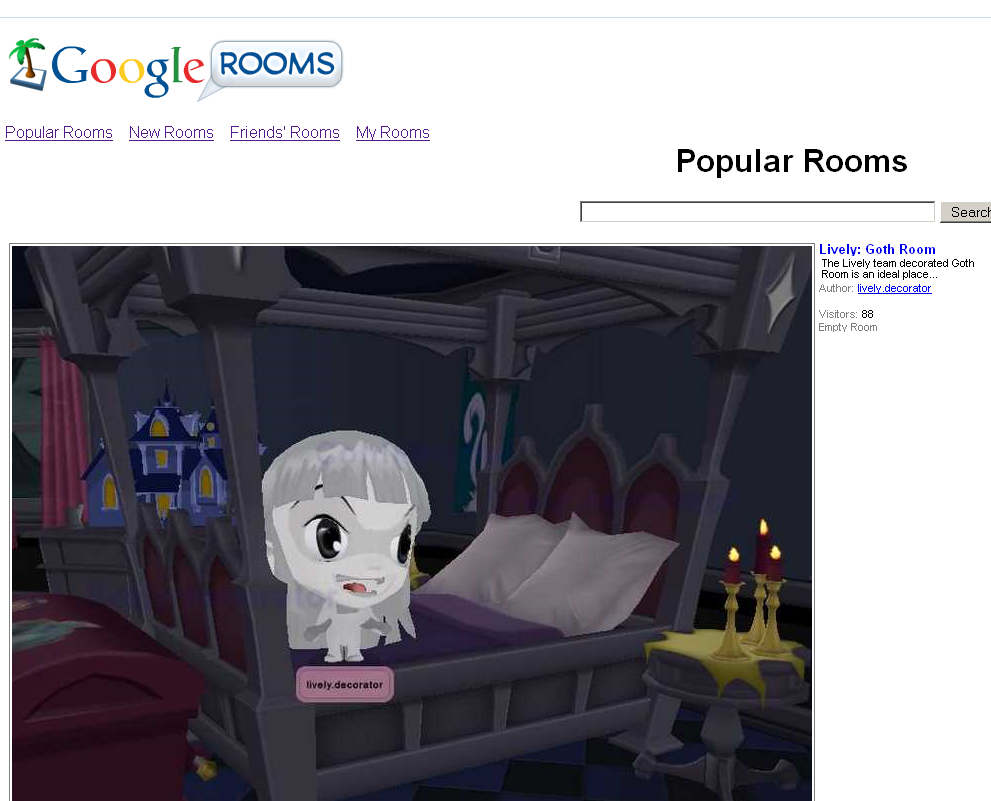
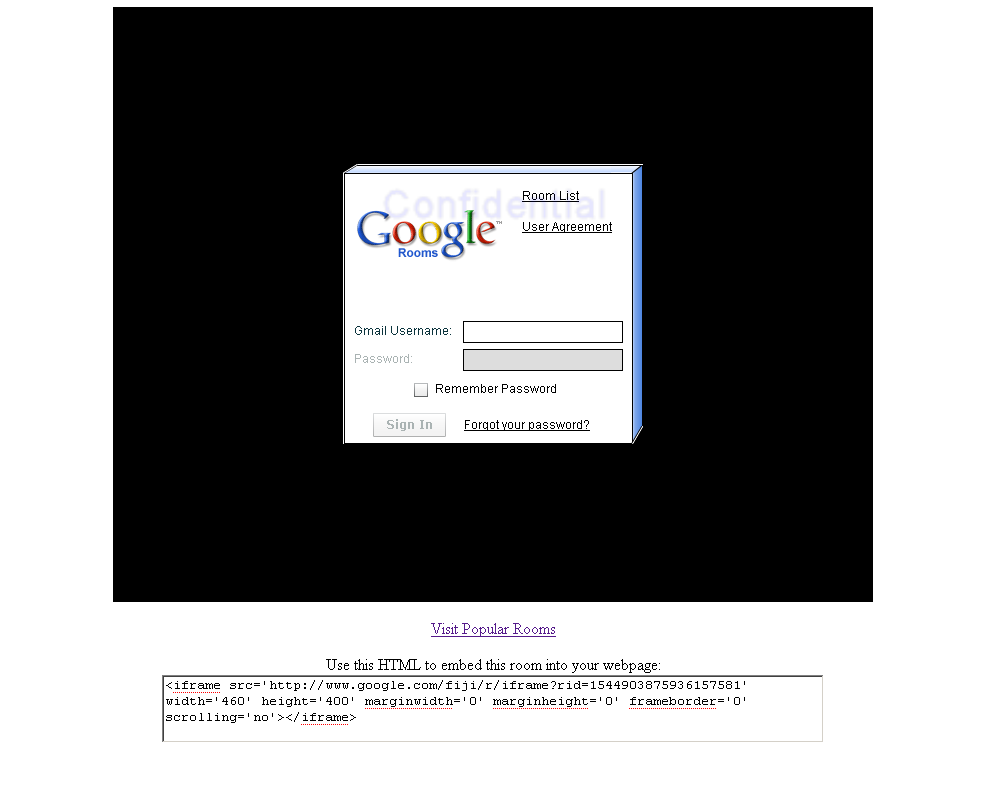
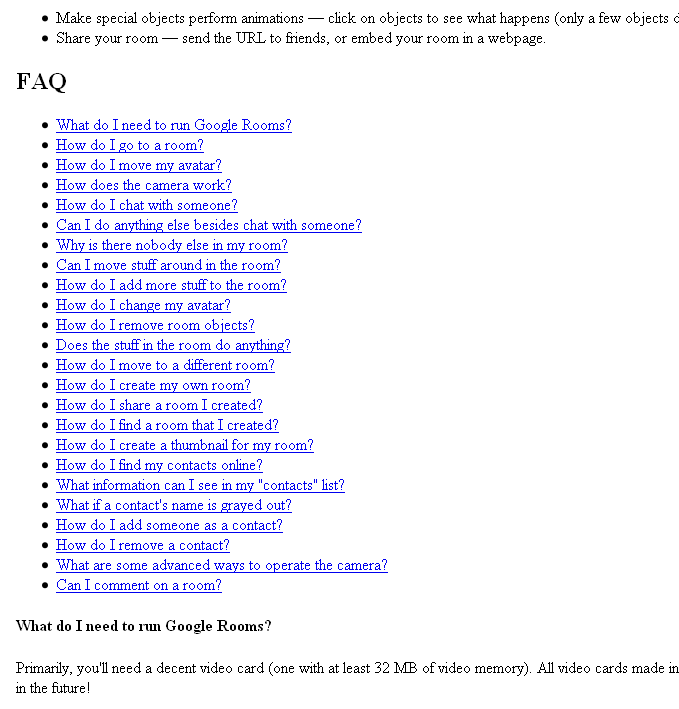
Before Google’s 3D chat world Lively was released, the product was called Google Rooms. Here are some left-over screenshots that we discovered on Google’s servers shortly after Lively was launched:
The Google Rooms logo used in the rooms directory, showing a palm tree from the island room
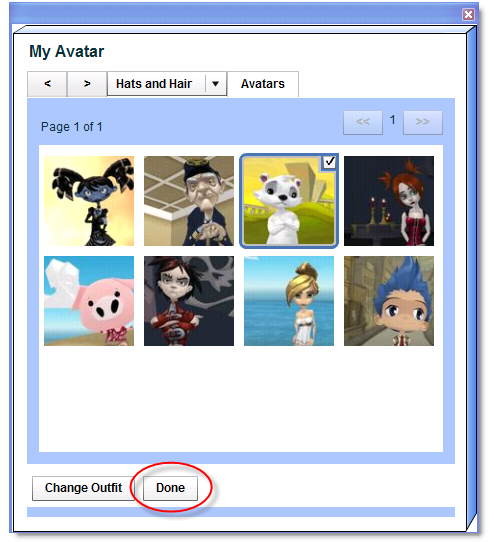
Selecting an avatar from the directory, which included URL references to Google’s 3D Warehouse
The login dialog for the Goth Room; this looks more like traditional minimalist Google style than the current Lively login dialog
The FAQ part of the long help page that Google had for this service
The avatar dialog, taken from the "Create" section of the Getting Started Guide
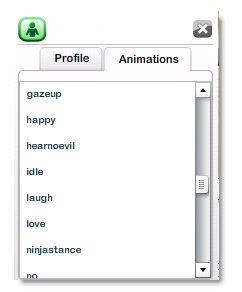
The list of character animations, taken from the "Communicate" section of the Getting Started Guide
Following Philipp’s announcement last month about the release of Google Apps Hacks, written by him and published by O’Reilly, I’m pleased to say that another O’Reilly book recently hit the shelves. Over the last couple of months, I’ve been the technical reviewer for Google Apps: The Missing Manual, a book aimed at users who are either new to Google’s online applications, such as Google Docs, Gmail, Google Talk, Calendar, iGoogle, Page Creator, Google Apps and Google Sites, or who simply want to learn more about all the available features which can sometimes be difficult to find. Content previews are available for each section of the book on the O’Reilly website so that you can see the type of things being discussed.
As we all know, Google’s applications often have features added (and removed) on a daily basis, so being the technical reviewer for a book written about these applications was a difficult task. Even with excellent resources like Google Blogoscoped forum, it was impossible to ensure the book would be up-to-date and 100% accurate when it was published. For example, Google Sites was opened to standard Google Accounts users two weeks after the book had gone to print, so this section already has slightly incorrect information in places. However, I’d like to think that my knowledge and input helped to improve the overall accuracy of the book.
And we’re not the only Google Blogoscoped regulars that have been involved in books about Google recently either. Reto Meier – an excellent contributor to the forum who has also written guest posts for this blog in the past – is currently involved in a book titled Professional Android Application Development which is due to be released in later this year, published by Wiley. Android is the Google-initiated mobile operating system, and the publisher writes that this book “takes readers through a series of projects, each introducing a new Android platform feature and highlighting the techniques and best practices to get the most out of Android.”
More books about Google are available at Amazon, including the For Dummies series, The AdSense Code and others.
It seems a bunch of new functionality might be coming to the Google Docs spreadsheets application. By accessing one of Google’s experimental sites (like the one where I found offline access would be coming to Google Docs) I was able to get a sneaky look at some of this functionality, including the ability to record, edit and run macros, edit a shared spreadsheet in something called “List mode” and a few new functions for use in spreadsheet formulas.
Macros
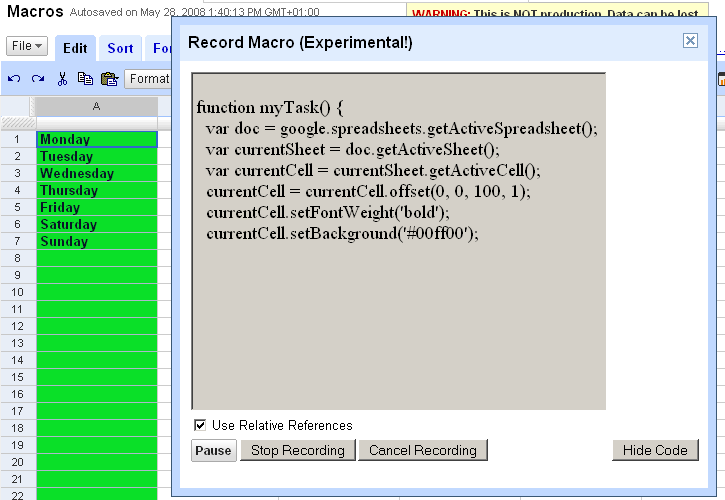
For those unfamiliar with advanced features offered by desktop office applications, a macro is a set of instructions that can be used to automate a series of actions in a program. You can usually record the actions as you carry them out in real-time or edit the macro code directly. Here’s a screenshot showing what macro recording in Google Spreadsheets currently looks like:
Since I’ve opted to display the macro code being created, anyone who knows a bit of JavaScript should be able to work out that I’ve basically highlighted a column, made the contents bold and set the background color to green. For more advanced users, there’s the option to edit the code for all the macros directly, giving each one a different function name:
Once again, it’s quite obvious that this functionality is still in the very early stages of development. During my tests, I was unable to actually get any of my saved macros to run! (Each time I selected “Run Macro...” from the menu, I got a “macroNameNotFound” error popping up.)
List mode editing
A new option found under the Share tab currently offers Googlers the ability to allow other Googlers to edit a spreadsheet in List mode, which also allows for filtering and sorting. Since many people only use spreadsheets for storing simple lists, I guess this makes a lot of sense.
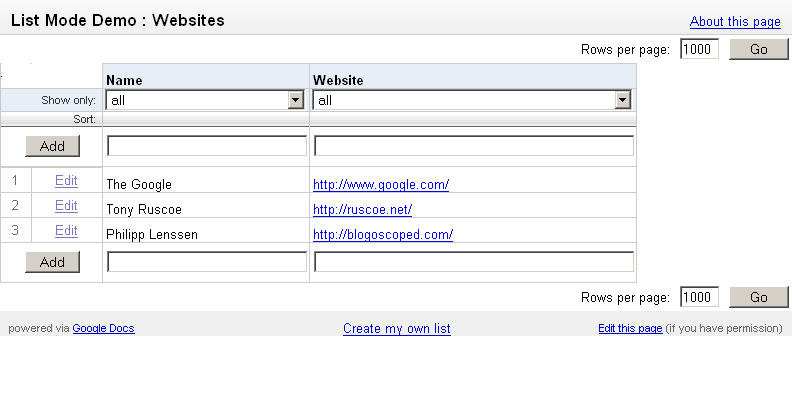
Although this feature hasn’t officially been made available in the live version of Google Spreadsheets, it seems the experimental functionality is already there. Try editing this spreadsheet in list mode for an advanced preview of the feature. (This feature does seem a bit temperamental at the moment, so if the spreadsheet doesn’t load, try again in a new browser window.)
New functions
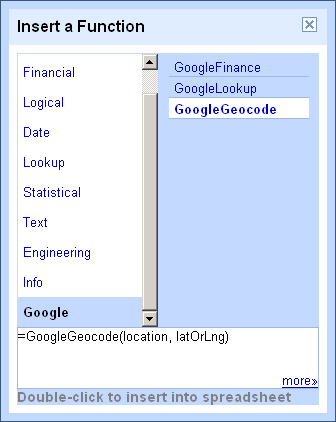
Other new additions include a set of Engineering functions – some of which are already available in Microsoft Excel – to allow for conversions between different numeral systems (i.e. binary, octal, decimal, hexadecimal) and a new GoogleGeocode function (which was actually spotted about 8 months ago in the live version) that will presumably allow you to do a geo-code lookup on a location, for example:
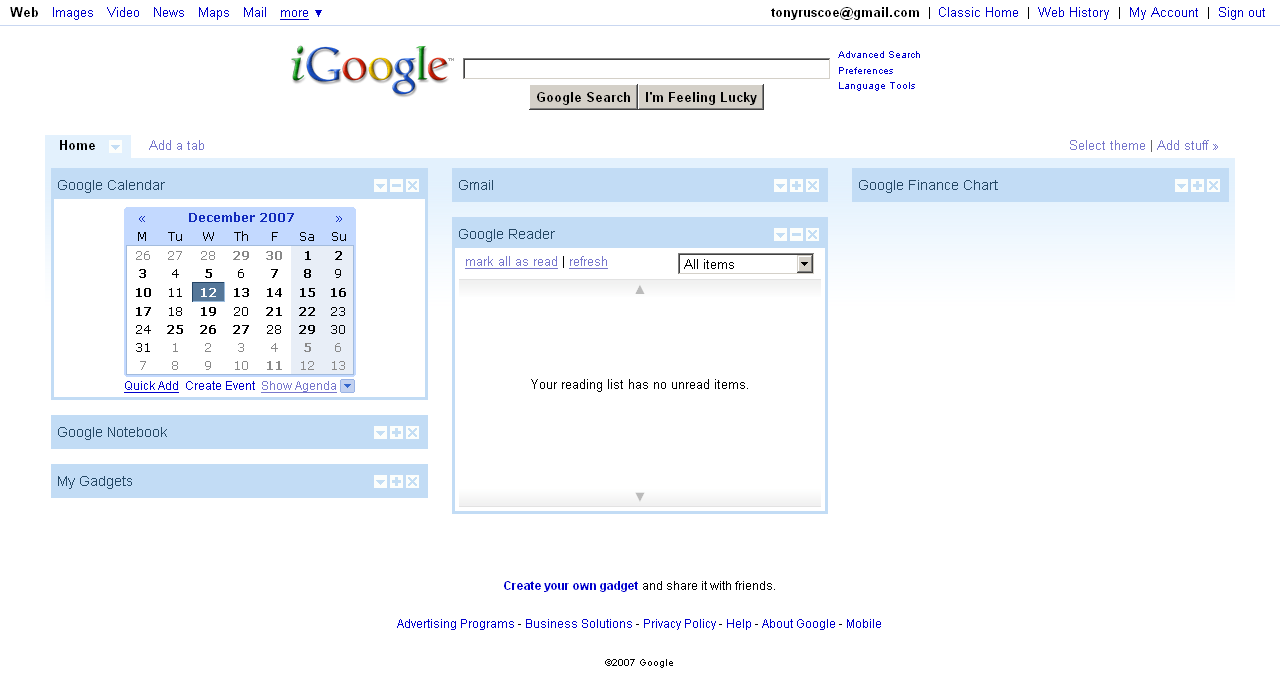
One thing that iGoogle doesn’t currently allow you to do is move your tabs around to change the order of them. A quick Google search returns hundreds of pages where iGoogle users are asking how to do this. Until this feature is officially added, here’s how you can do it yourself...
Yesterday, Google added a feature to iGoogle which allows you to export and import your settings.
Exporting your settings to your computer downloads an XML file which contains information about all of your tabs, gadgets and theme settings. (You can see what yours looks like here.)
If you’re familiar with XML, it should be quite obvious what you need to do. If not, simply follow these steps:
Go to your iGoogle settings page, scroll down to the Export / Import section and click the “Export” button. (You’re going to edit this downloaded XML file, so I recommend making a copy just in case things go wrong!)
Open the XML file in a text editor, such as Notepad, and look for the sections which start with <Tab title=. There should be a section like this for each of your iGoogle tabs. (If there are any you don’t recognize, they could be used by iGoogle for Mobile.)
Find the section which corresponds to the tab you want to move and cut everything between <Tab title= and the next occurrence of </Tab> (including the tags themselves). Paste it either before or after the <Tab> section that you want it to appear next to.
Now go back to your iGoogle settings page, browse for the file you’ve just edited and click the “Upload” button. Do not click “Save” button!
Once you see the “Import completed.” message below the upload field, go back to your iGoogle home page and you should see your tabs have changed order!
(If things didn’t go to plan, find the copy of your XML file and upload that, which should restore everything to the same as it was before.)
Private Facebook photos were exposed to the public through a simple URL edit, Associated Press and ReadWriteWeb report. The hole is now apparently closed. Similar cases have appeared before on other sites with photo hosting and sharing, like MySpace and SmugMug.
Furthermore, as we found out, with a little workaround anyone can see what we understand is intended to be an employee-only Google network. Once in that network, you can then also view e.g. photos and profiles which the Google employees have flagged to be seen only by members of that network, or read along the network’s discussions. (There are currently 8,529 members in the Google network.)
We alerted Facebook and Google security of this today (it’s somewhat hard to define which of the two companies is responsible for this security issue) and can reveal details once they had some time to fix it. Note the workaround may or may not be applicable to other networks; it depends on the network. The safest option until it’s fixed may be to temporarily leave private networks, or perhaps choose some other option to make a profile more private.
Unless something is going really, really wrong with Google, we have a suspicion this is just an upcoming April Fool’s joke for Google. If that’s the case, then note that spoilers follow below.
OK. Remember Microsoft’s Clippy, that annoying “living” and talking paper clip, popping up with useless tips whenever you wanted to get some work done in Word? It looks like Google Docs is preparing integrating a similar feature called Cliply. Instead of a paper clip, this time it’s a living Google logo (cached image). And it probably will be just as annoying as Clippy was. The following code showed up live in the source of a Google Docs document...
But again, before you sign in to Google to delete your account forever, remember (even when Google’s apps are moving in the direction of Microsoft Office) this is very likely just an April Fool’s prank or general easter egg by Google engineers. If not, then be scared, very, very scared... as Clippy is about to return!
Update: We now got confirmation it’s not an April Fool’s hoax preparation... it’s indeed an easter egg.
Working with Google Docs requires an internet connection. In my case, I need this internet connection anyway [...] your mileage may vary (and who knows, Google may also release Gears-support for Google Docs in the future).
After playing around with one of Google’s not-so-private experimental sites, I can confirm that offline access is currently being tested. When I visited the site recently, I saw this message:
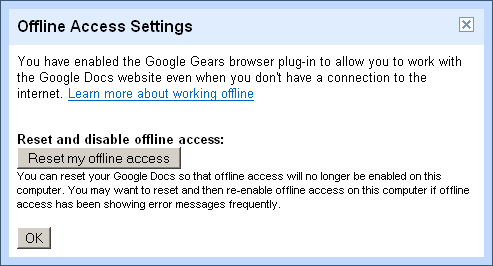
Of course, I clicked the link and this popped up:
Google Gears is a browser extension for Firefox 1.5+ and Internet Explorer 6.0+ that enables web applications to provide offline functionality through JavaScript APIs. (It also has its own blog.) Other companies – like Remember The Milk and Zoho – are already making use of Google Gears, but the only official Google integration is for Google Reader (although evidence that offline functionality is coming to Google Calendar has also been spotted).
After enabling offline access and confirming the security warning for Google Gears, my documents started to synchronize, just the same as feed items synchronize in Google Reader. (In case you encounter any error messages, Google allows you to reset and disable offline access through the offline access settings dialog box.)
Disappointingly, I wasn’t able to actually view or edit any of my documents after going offline; I could only view them in the document list and received a Firefox “Offline mode” message when I tried. However, I was able to perform simple operations like renaming and starring them while being offline, which were successfully synchronized once I reconnected.
As you can see from the screenshot above, it looks like offline access might be initially introduced just for documents, rather than spreadsheets and presentations which are grayed out like other options in the menu, such as creating a new document, uploading and sharing.
From what I’ve seen, I think it’s clear that offline access is obviously still in its early stages, but it’s reassuring to see that Google is actively improving its online office applications to make them also work offline like the desktop applications we’re all used to.
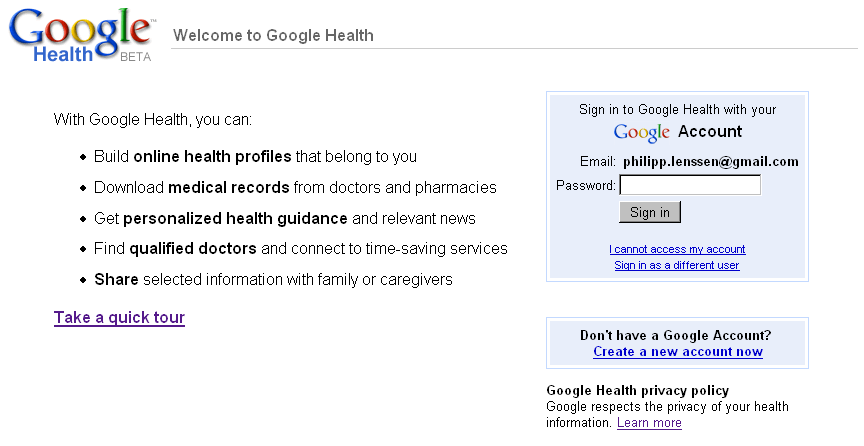
However, I didn’t get past the login screen, so all we see at the moment is the intro page. It reads:
With Google Health, you can: * Build online health profiles that belong to you * Download medical records from doctors and pharmacies * Get personalized health guidance and relevant news * Find qualified doctors and connect to time-saving services * Share selected information with family or caregivers
Since October 2006 when Google announced they had acquired Jotspot – the wiki hosting service which allows you to create “rich web-based spreadsheets, calendars, documents and photo galleries” by using their wiki applications – people have been waiting for Google to do something with it.
Just over four months ago, in September 2007, I reported that JotSpot was coming to Google Apps after clues were found for a service called “Google Wiki” in the Google Apps login pages. Soon after that post, all traces of the service disappeared.
Almost two months later, a new subdomain was spotted – pages-beta.google.com, similar to the previously referenced beta.pages.google.com subdomain which never worked – adding to the speculation that Jotspot would replace Google Page Creator. By this time, the login pages had resurfaced on Google Apps and the Jotspot login page for google.com had started working; any requests made to pages-beta.google.com/a/google.com were redirecting there too. But for all other domains running on Google Apps, the login page simply displayed “Error” as the service name. *
Shortly after those discoveries, TechCrunch reported on Google’s plans for Google Apps in 2008. In the post, they quoted notes taken by blogger Andrew Miller at a presentation by Googler Scott Johnston, who was the VP of Product Development at Jotspot before it was acquired by Google:
Google Sites: Scheduled to be launched sometime next year (2008), Google Sites will expand upon the Google Page Creator already offered within Apps. Based on JotSpot collaboration tools, Sites will allow business to set up intranets, project management tracking, customer extranets, and any number of custom sites based on multi-user collaboration.
Around the same time, requests to pages-beta.google.com started redirecting to a new URL which included the sites.google.com subdomain instead.
What’s new?
The Google Apps control panel stylesheet now includes styles and an icon () for sites in preparation for displaying the service in Google Apps accounts and the title on the login page has changed from “Error” to “Pages“ – and then finally, in the last 10 days, it’s changed to “Sites”.
We all know how long it can take Google to roll-out new services, but could these final touches mean that Jotspot’s successor Google Sites is slowly getting closer to launch?
* Calls to this page for non-activated services would usually display the service name, whereas a real error would return a “Bad request” error message instead.
Since some new iGoogle themes were released last month and the Holiday Village theme for iGoogle was spotted more recently, I wondered how many other themes Google might be hiding from us... and found these two:
Similar to the default Classic theme, this skin keeps things simple but adds a soft blue gradient background, removes link underlining and adds a bit more space around links in the navigation.
Enter the following in your browser’s address bar:
javascript:_dlsetp('preview_skin=skins/tc.xml');
Where tc.xml is the XML filename of the theme shown above.
Click the Save button.
Neither of these themes include any information about their author, title or description in their XML files. Nor do they change based on time, weather or day of the week. I guess this could mean they’re not finished, so don’t be surprised if they change or get deleted!
What do around 16,000 Google employees stare at in the morning when they’ve arrived at the office? They might be looking at Moma, the name for the Google intranet. The meaning of the name of “Moma” is a mystery even to some of the employees working on it, we heard, but Moma’s mission is prominently displayed on its footer: “Organize Google’s information and make it accessible and useful to Googlers.” A “Googler,” as you may know, is what Google employees call themselves (they have other nicknames for specific roles; a noogler is a new Google employee, a gaygler is a gay one, a xoogler is an ex-one, and so on).
A Google employee in Hamburg (photo taken in mid-2007).
In the beginning, as ex-Google employee Doug Edwards told in a blog post in 2005, Moma “was designed by and for engineers and for the first couple of years, its home page was devoid of any aesthetic enhancements that didn’t serve to provide information essential to the operation of Google. It was dense and messy and full of numbers that were hard to parse for the uninitiated, but high in nutritional value for the data hungry.”
Here’s a picture of the Moma homepage that we got hold of – please note that large areas have been grayed out or whitened out:
On the top of the Google intranet homepage, you’ll find the logo reading “Moma - Inside Google.” Next to it is a search box allowing you to find information from Moma in general, information on specific Google employees, information on availability of meeting rooms, building maps and more. You can choose to include secure content or not via a checkbox. Another checkbox offers you to use “Moma NEXT” for a more experimental variant of search results.
To the top right, there’s an option to switch to iMoma, an iGoogle-style tool prepared by the company which allows further customization of the intranet start page. This way, employees may be able to select their own news and service widgets of interest to be displayed when they log-in.
The actual content of the homepage in the picture is split up into 4 columns. To the left, there’s a “My Office” section, with information for employees and a way to choose your own office for more relevant links. It’s followed by the sections “Survival Kit” and “My shortcuts.” In the middle columns, news gadgets are headlined “Welcome to Google!,” “Communications,” “HR” (human resources), “Company Info” and “Internal Google news,” all in common soft shades of Google base colors. The right column is listing Google teams.
Searching Moma
When you perform a search on Moma, you will see a result similar to the following; this screenshot, which was edited by Google to include comments, has been published by the Google Enterprise Blog in a post of theirs in July to show-case the kind of functionality available:
On the image, you will see a “universal search” style result including employee information, bookmark results, documents hosted on Google’s intranet, and a list of related queries. Users get to choose between ordering by date or by relevance. One can also limit the results to different segments like “Tech,” “Official,” or “Community.” Google in their blog said the use the Google Search Appliance to power this service.
Ex-employee Doug Edwards mentioned how he came to take for granted everything was available on the intranet, “from the status of products in development to the number of employees at any point in the company’s history.” He adds that the transparency was also a motivator, as “Your failures are also visible to everyone in the company, which provides an even greater motivator to continuously improve performance in the areas for which you are responsible.” These days however, as Doug writes, Google “clamped down on who had access the complete state of the business.”
The following photo shows a result for what seems to be an employee search. The photo is used with permission from Zach at HannaCabana.com, though Zach tells me it had been anonymously submitted to him (note we added blurring to the phone numbers of the zoom version):
On the employee results page, everyone is listed with their name, a photo, their job title, telephone number and more. Clicking through to an employee lands you on their full profile page. Ex-Googler Doug Edwards remembers how many Google employees used “alternative images and titles” for their Moma listing. “I recall photos of samurai warriors and masked figures with titles like ’Shadow Ops’ and ’Black Ops.’ These were later weeded out as part of an upgrade”.
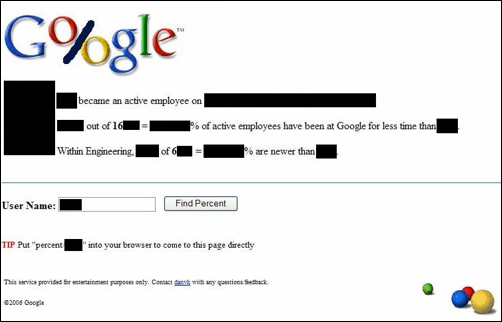
Employee data may also be rendered in different forms. Below is a screenshot we first posted on in February of an internal application called Google Percent:
This service simply shows how many employees are newer than a particular other employee (some areas in the image have been blackened out).
How employees access the intranet
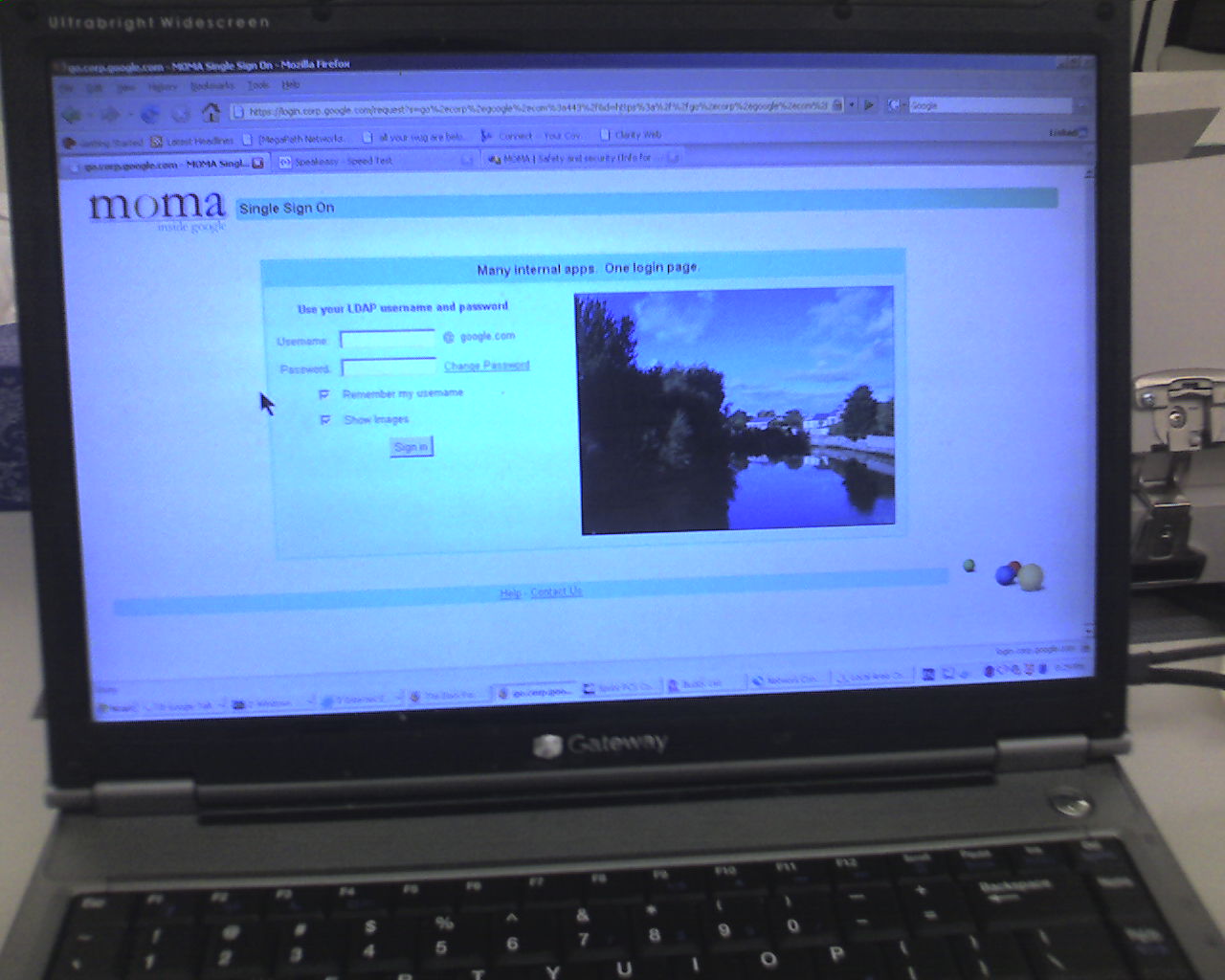
Photo courtesy of Zach, again. The dialog reads, “Many internal apps. One login page.” The input boxes ask for the user’s LDAP (Lightweight Directory Access Protocol) credentials.
A Google employee can log-in to the intranet from within the office, or with a so-called Virtual Private Network (VPN) connection. This connection comes pre-installed on laptops Google hands out, and can be reached via a desktop icon. A Google employee is required to authenticate their sign-in with account credentials.
From within a Google building, an employee may likely reach the intranet via the address corp.google.com. We previously found out Google additionally uses many sub-domains in their intranet, like album.corp.google.com, agency.corp.google.com, alien.corp.google.com, karma.corp.google.com, periscope.corp.google.com, pineapple.corp.google.com. You may also likely just enter e.g. “m” (which maps to “http://m” which is “http://m.corp.google.com”) to be taken to a service like your Gmail-powered email account.
Externally, like from a laptop at a conference – or if you’re one of the employees mainly working from home, as there are some – employees can access the VPN servers located on sites like Mountain View or Dublin, Ireland, with different hostnames each like man....ext.google.com or de....ext.google.com (we depleted part of the hostname).
Google “eating their own dog food”
Google employees use many of the tools Google produces. They even have launched an internal “dogfood” campaign in 2006. But what they see may be newer versions of the services than those released to the outside.
If you work in a team for a product, you may also get a prototypical version of the service. Below for instance is a screenshot from a nightly build of Google Spreadsheets – codename “Trix” – which we were able to take a look at (note several areas in this image have been grayed out):
In above image you can see the disclaimer “Warning: This is NOT production. Data can be lost.” Special links to debug windows are offered to developers as well, one of them being opened in the screenshot. Google employees also get to see previews of completely unreleased tools, such as wiki service JotSpot (which is being integrated into Google Apps), or Platypus, the internal Gdrive client for file-sharing.
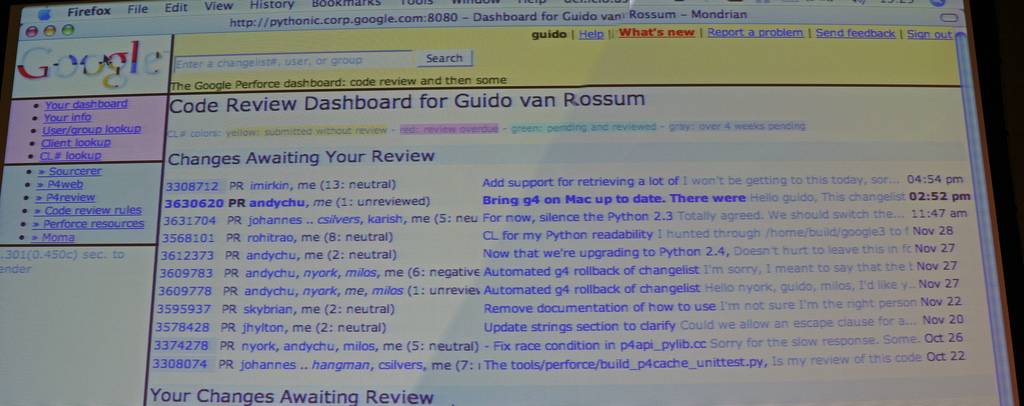
For code reviews, Google created Mondrian, a “Perforce backend with some custom Google wrappers on top,” as Nial Kennedy, who shot the following photo (Creative Commons-licensed), notes:
And the following image shows Google in-house tool Trax (this is part of a larger photo by Google employee Andrew from Flickr, but it is not available anymore; we’re not quite sure how this tool works or what it achieves):
But, Google doesn’t just use their own tools. For instance, we came across information indicating that many Google employees prefer social network Facebook.com to their own production, Orkut (e.g. some Google employees considered Orkut too spammy, or too buggy in the past).
If a Google employee encounters trouble with any Google tool, they can call their internal support hotline named “Tech Stop.” The hotline promises 24-hour availability. Numbers like +1 877... (last part depleted) are partly toll-free and partly with toll, and accessible from all over the world. Internally, a Google employee may also simply press 3-HELP (3-4357). Tech Stop centers aren’t just located in the US, but also in places like Hyderabad, India.
Tech Stop support wasn’t always that luxurious though, as Doug Edwards noted in another article. When he left the company in 2005, a supportive Tech Stop was available in every building – but in the beginning when he joined, he notes that for instance not all operating systems were supported. When you were facing an issue with corrupted Windows DLL files, a common response was, “Why aren’t you running Linux?”